

Optimal Health.
Real Value.
Root-cause health solutions that respect your budget.
"Give a patient a pill, and you treat them for a day.
Teach a patient self-care, and you empower them for a lifetime."
Get answers and solutions by clicking on the icon (bottom right) on any page.
WHY CHOOSE Dr. Frugal - Dr. Thomas J. Lewis? Real Optimal Health - at the Root Cause for Everyone
We provide Functional and Integrative health solutions at a fraction of their prices. Finally, real science-based answers that keep $$ in your pocket.

Low-Cost Diagnostics
Predictive tests, most costing <<$100 w/extensive à la carte menu.
Immune, Thyroid, Hormones, Pathogens, Gut, Vascular, Brain...
Tests for root-cause factors that even functional/integrative docs are missing.
No-Cost Routines
Subtle, sustainable shifts that cost little, nothing, or often save you money — can meaningfully improve your health.
We understand that both your time and your health are extremely important to you. That’s why we focus on practical habits and practices that honor both.
Examples include intermittent fasting for better metabolic health and taking a few minutes mid-day to hang or lie flat to decompress your aching back.
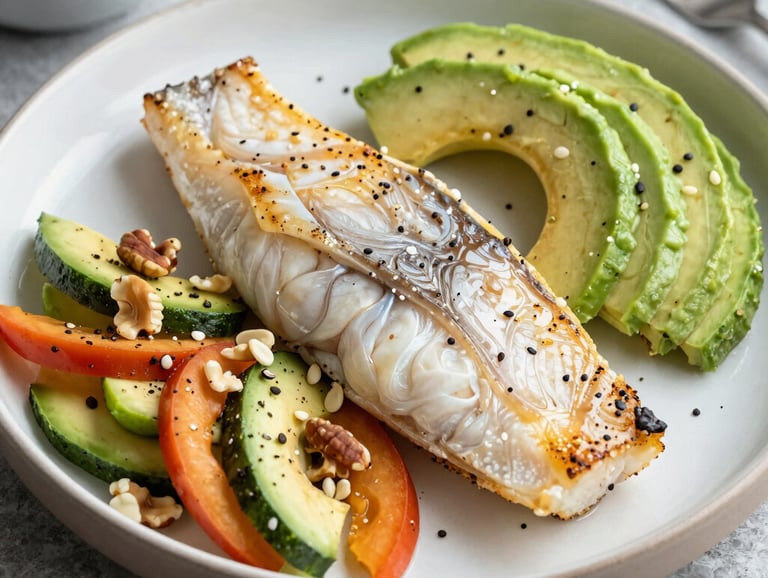
Food as Medicine
Learn which grocery staples replace expensive supplements.
Know the top 10 least expensive foods that are the healthiest.
Accommodating Coaching
You and your coach are a team, and YOU are the boss. Our coach will "meet you where you are at" and modify your plan as you progress.
How It Works in 2 Easy Steps!
1. Order a test
and/or
2. Order a consultation
NOTE: You can order a consultation without tests.
and
You can order tests without a consultation.


Order Consultations
We offer consults in 15-minute increments.
It's the FRUGAL way!
Need a quick check-in? Order 1 15-minute block.
Need a deep dive? Order 2 or more 15-minute blocks.
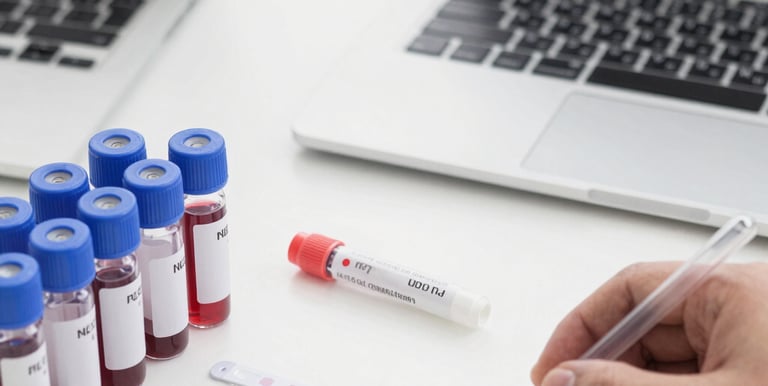
Order Tests
You can request affordable, effective health screening tests to help you identify ways to enhance your health or resolve a health issue.
Empowering your health journey with solid evidence over medical dogma.
Health & Disease Mechanisms
Understanding FIVE (5) basic mechanisms enables you to reverse or prevents most chronic conditions.
GONE is the overcomplicated and confusing medical coding system (ICD-10) with 72,000 diagnostic codes.
Simplifying Health
Health concepts everyone can understand and Improve Upon!
You are what you ABSORB: Improve food quality and digestion.
Stress Harms or Kills: Get out of "fight or flight" mode.
Chronic infectious are REAL: They slowly inflame and damage.
Toxins drive Inflammation that damages tissue and organs.
Autophagy is our repair process. Give it a chance.
Health & Disease Pathways
Understanding FIVE (5) basic pathways enables you understand and provide a roadmap for improvement!
REPAIR: If repair is weak, deterioration prevails!
IMMUNITY: Immunosenescence is the natural process of aging.
DETOX: Toxins contribute to damage requiring more repair.
ENERGY: You have fuel, but is the "supporting cast" in place?
REGULATORY: Hormones and peptides act as "conductors."
Example: Diabetes
Dogma or Current Standard Medical Thinking: ICD-10 Code: E08-E13
ISSUE: Too many calories are consumed. The excess calories are stored as fat. As this process continues, glucose increases in the blood and insulin goes up to push the "sugar" into the cell. The cell resists creating a viscous cycle of more sugar, more insulin, and more excess calories stored as fat. Eventually the pancreas reaches its limit and producing insulin to "control" the blood glucose.
SOLUTION: Give drugs like metformin to lower glucose levels. Give insulin to "push" more glucose out of the blood stream - thus lowering blood glucose levels.
PROBLEM: Studies show that individuals with insulin-dependent Type 2 diabetes have a life expectancy that is roughly 7 to 11 years shorter than the general population. Additionally, non-insulin dependent diabetics all have shorter life expectancy compared to non-diabetics. Reference: https://www.frontiersin.org/journals/endocrinology/articles/10.3389/fendo.2025.1704277/full
Mechanisms & Pathways: No Codes - Root Causes Instead!
ISSUE: Food with insufficient micronutrient content is consumed or digestion is compromised so even someone eating well is NOT getting adequate micronutrients. As a consequence your brain sends a signal to consume MORE FOOD. This process is called "Hidden Hunger." Cravings and hidden hunger are similar. Blood glucose goes up as does insulin. The insulin goes up to remove excess sugar from the blood and send the excess to the Liver to store as fat. HOWEVER, the elevation in insulin levels causes MORE food to be consumed - not for the calories, but to achieve sufficiency in micronutrient levels.
Consider someone who is consuming adequate calories but only 50% of the bodies requirement of micronutrients - as determined by their brain. Their brain then sends a signal back to consume DOUBLE the food so that macronutrients are now in adequate supply.
SOLUTION: Increase micronutrient intake and/or improve gut health to optimize the absorption of micronutrients already in the food.
PROBLEM: None: "Diabetes" (more appropriately called "insulin resistance" can be reversed using this understanding. Indeed, it is more complicated than this, but the micronutrient deficiency is the ROOT-CAUSE of the diabetes cascade.
What causes the diseases that stem from diabetes?
No explanation is given for the increase in diseases that follow diabetes like neuropathy and heart/vascular disease other than excess sugar. In fact, experts at the NIH and Harvard where so convinced that providing insulin would reduce heart disease that they conducted a study called ACCORD - Action to Control Cardiovascular Risk in Diabetes. The study had to be stopped because so many people on high levels of insulin where DYING! Reference: https://www.nejm.org/doi/full/10.1056/NEJMoa0802743
Dogma or Current Standard Medical Thinking
Mechanisms & Pathways
Diabetes is first a micronutrient deficiency/insufficiency. Micronutrients are the raw materials for enzymes, your liver, and your kidneys (and other processes) to work properly. The major pathway they drive is "REPAIR." When 'REPAIR" is compromised, damage magnifies. Chronic disease is simply when damage happens at a greater rate than repair.
Here are the mechanisms that impact diabetes: "You are what you absorb" and "Autophagy - your repair mechanism"
Here are the pathways that impact diabetes: REPAIR, DETOX, and ENERGY
Example 2: Chronic Pain
ISSUE: There are many causes of chronic pain. It may have started from an illness or injury, from which you may have long since recovered from, but pain remained. Or there may be an ongoing cause of pain, such as arthritis or cancer. Many people suffer chronic pain in the absence of any past injury or evidence of illness. (FrugalDoc Note: Is this helpful at understanding root causes?)
SOLUTION: The clinical management of long-term chronic pain can be challenging. The limited number of pharmacological treatments available only helps a proportion of patients, often resulting in tolerance and side-effects with long-term use. Patients can be left with substantial functional disability and poor quality of life, and with their condition causing substantial health-related economic burden. linkinghub.elsevier.com/retrieve/pii/S2058534917301816
PROBLEM: Solution is pharma-only: Biologics, NSAIDS, and anti-inflammatories. And, they state that they cannot help long-term
Dogma or Current Standard Medical Thinking: ICD-10 Code: G89.29
ISSUE: Describing chronic pain as a cellular energy crisis is a compelling, highly accurate way to look at how the body handles persistent pain. While traditionally viewed through the lens of psychology or structural anatomy (like a pinched nerve or worn-out joint), contemporary neuroscience and cellular biology show that chronic pain is deeply tied to mitochondrial dysfunction and bioenergetic failure.
SOLUTION: 1. Increase cellular energy with energy systems like sunlight, electrical currents, magnets, sound and infrared light while supporting a healthy internal ecosystem by consuming high nutrient-dense foods. 2. Eliminate "energy stealers. Underappreciated pathogens like those from the oral cavity, even mild or seeming insignificant, like gingivitis or periodontal disease can contribute to low energy, thus pain either in your entire body, or locally, in specific tissue. The solution is, of course, improved oral hygiene.
PROBLEM: This concept of pain, and the elimination thereof, may not be well recognized or accepted thus minimizing its implementation. According to PubMed, over 100 scientific/medical publications directly or indirectly link chronic pain and periodontal disease.
Mechanisms & Pathways: No Codes - Root Causes Instead!
YOUR PATH
The FrugalDoc Recovery Roadmap
A step-by-step approach to restoring your health.
This approach recognizes the interconnection between ALL systems.
STEP 1: Gut Health: You are what you absorb!
If your gut isn't optimal, all systems are operating inefficiently. We guide clients through the "8R" 8 sequential steps to great gut health.
STEP 2: Oral Health: You are what you swallow!!
You swallow 1.5 liters of saliva/day. We know from OralDNA testing that almost everyone has oral pathogens in their saliva. These pathogens affect the gut AND the vascular system (via the blood supply in the roots).
STEP 3: Augment Micronutrients: These are your "carpenters."
100 years of data show that our soils are depleted in micronutrients. See the image to the right. Augmentation is very low-cost and effective.
STEP 4: Improve Metabolic Flexibility: NOT with GLP-1 drugs.
Simple things like fasting, increasing your intake of micronutrients, and adding key fats to your diet can restore insulin sensitivity.
STEP 5: Support Immunity: Immunosenescence IS aging!
Certain supplements and peptides WILL slow aging. We also recommend short-duration high dosing of vitamins A, C, & D along with iodine under medical supervision.
STEP 6: REVERSE Heart Disease: Blood Flow = Health.
Proteolytic enzymes and vascular cleanses have been shown clinically to improve vascular integrity.
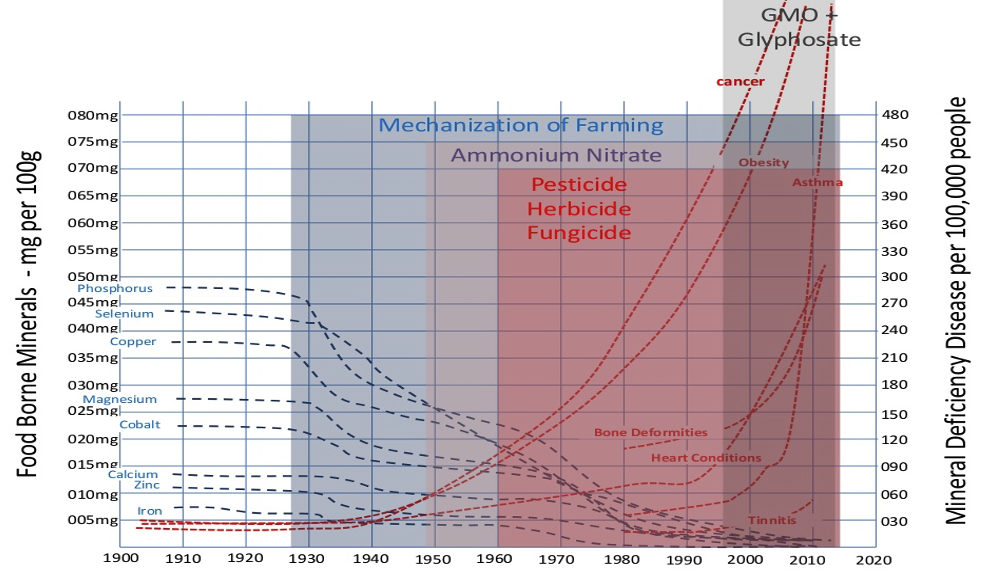
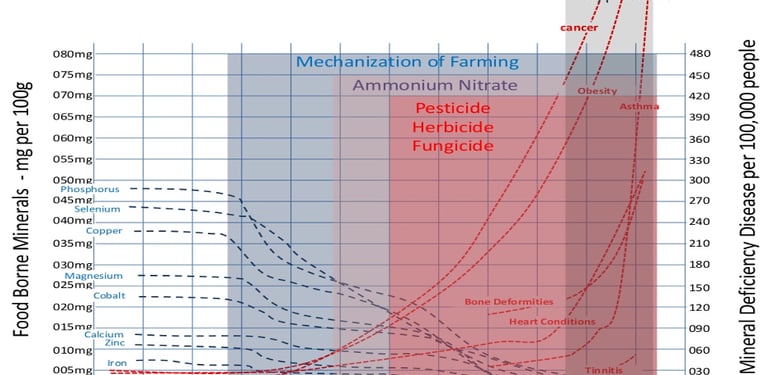

Dramatic loss of micronutrients in WHOLE FOODS!
Very informative content on gut & oral health.
TESTIMONIALS
Real Recovery Stories
Hear from individuals who reclaimed their health without the high costs.
"Frugal Doc found the REAL root causes to long-standing energy problems in the first low-cost consult. Based on my diet as I explained in the risk assessment, he identified some potential deficiencies. I took his simple and inexpensive recommendation and am already feeling better. He explained that my digestive problems were not simply annoying but were impacting my entire body. Somehow the nutrients were not being absorbed and this was the root-cause of my low energy. Anyway, working on my gut made all the difference!"
Sarah J., 38
"I believe Dr. Lewis saved my life. He read my risk assessment and looked at my labs and told me I had to see a biological dentist IMMEDIATELY. The infection was so bad the dentist told me that a heart attack could have been imminent. Dr. Lewis explained that to me also, before my dental visit. He showed me a lot of research and even some testimonials that made me a believer. My chronic pain and fatigue are substantially gone now that the oral work is done. That process took several months. During that time, I worked with Dr. Lewis on a variety of simple health interventions including some very basic things to take better care of my teeth and gums, like oil pulling and brushing with salt - both of which I had not heard of before."
Glenn., 71
"I had severe psoriasis on my hands and feet. Had this problem for over a year, seen 3 Dermatologists, done patch testing, tried all kinds of steroid creams, had steroid shots, got light therapy - and everything I did hurt so bad! I wore gloves everyday, slept in them with Vaseline, it was awful. It wasn't until Dr Lewis came to my work and talked about a couple of things that could cause my condition and said he could help me that I had hope. It made sense for the first time. They sure have helped, my hands and feet are doing awesome. The coaching is great not only for my hands and feet, but working on my overall health. I would love to see HRP continue and I do recommend it to all. I'm so grateful for what they done thanks so much."
Sandy. 62
"I have been suffering with rheumatoid arthritis for years. And was diagnosed with type II diabetes February 2014.
My arthritis was to the point that I couldn't make a fist at all an my knuckles were so big that I couldn't get my ring to move much less get it off. My back hurt most of the time. The Doctors told me that they could give me medication to make my arthritis less painful but nothing they could do for the arthritis. As for my type II diabetes, I was put on Metformin 500 mg. twice a day. My numbers started out at 300 an after taking the metformin they dropped to 144 to 120 sometimes higher. Plus I weighed 220.
With the arthritis and type II diabetes, I felt tired all the time and had very little energy. I just didn't feel like doing anything. When I got home from work I just wanted to do nothing. I had to force myself to do anything. I felt like I needed a nap all the time. At night I tossed and turned when I tried to sleep and was up and down several times a night. I wasn't sure Dr. Lewis could help, but I made a commitment I can now make a tight fist, have no problem working around the house after work. I can run and play with the grandkids and Not feel wore out. My energy is awesome, and I am not diabetic anymore. At least I don't think so. My numbers are at 109 to 76 range most of the time, with no medication. Except for a couple herbs. And now I weigh 163 pounds.
His program, with the help of Jodi as my coach, has helped me learn how to eat a healthy diet an take control of my life. They are there anytime I need them. It's like having my own personal coaching staff. The HRP team has been there for me through the rough times as well as the good. They keep me motivated and encourage me to get through the good an bad. I feel energetic and much better than I have In a very long time. If it weren't for their encouragement, I would have given up a long time ago. I would still be sick and even more problems than I started with. I would definitely recommend this program to others. AND AM GLAD I FOLLOWED THROUGH!!! The results were amazing but it took a good 5 months of encouragement before I really saw and felt a huge difference."
Roger, 62
OUR TOOLBOX, YOUR TOOLS
FrugalDoc provides a surprising number of no- and low-cost activities and behaviors that DRAMATICALLY change your health trajectory.






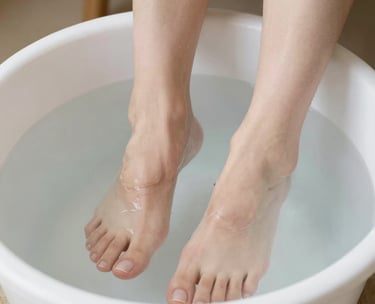
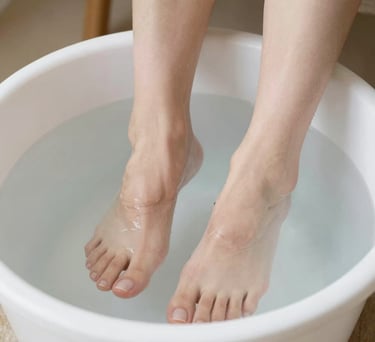
Cold Plunge? Cooling your feed does the same thing. It dilates and improve vessel health across your body without having to submerge your entire body. Who can do THAT daily?
Lying on your back on a hard surface a couple of times during the day often relieves back pain with NO OTHER interventions needed. It relieves spinal compression and allow fluid flow.
Barefoot walking improves: 1. bone health; 2. grounding; 3. balance; and 4: cognitive reserve. Your feet send your brain ALL kinds of signals. Wearing shoes with soft soles shuts them off.
Sunshine first thing in the morning stimulates cortisol production to wake you up. If you can walk on wet grass or stick your feet in some water, you will also benefit from grounding. Drink water, not coffee, before your walk. Doing this is shown to reduce heart attack and stroke risk.
Optimize or Reclaim Your Health Today
You have the will. We'll provide the knowledge, tools, and guidance to help you achieve better health.
Updates
Get low- and no-cost health tips and root-cause solutions.
FrugalDoc
Affordable Health & Wellness
© 2025 FrugalDoc Health & Wellness. All rights reserved.